
Diff Viewer
The diff viewer shows you exactly what the agent changed in your codebase, updated in real time as the agent works.
Viewing Changes
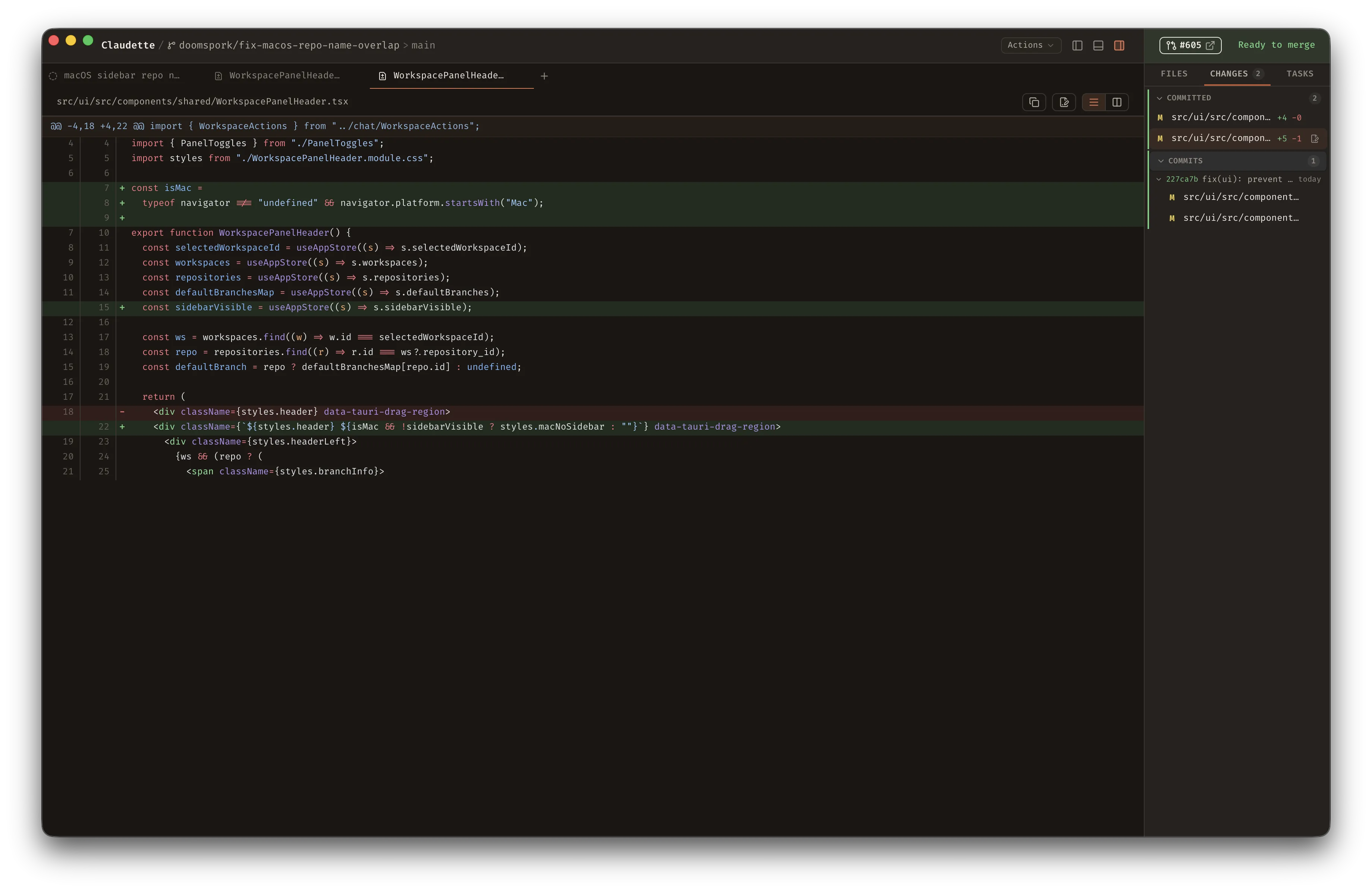
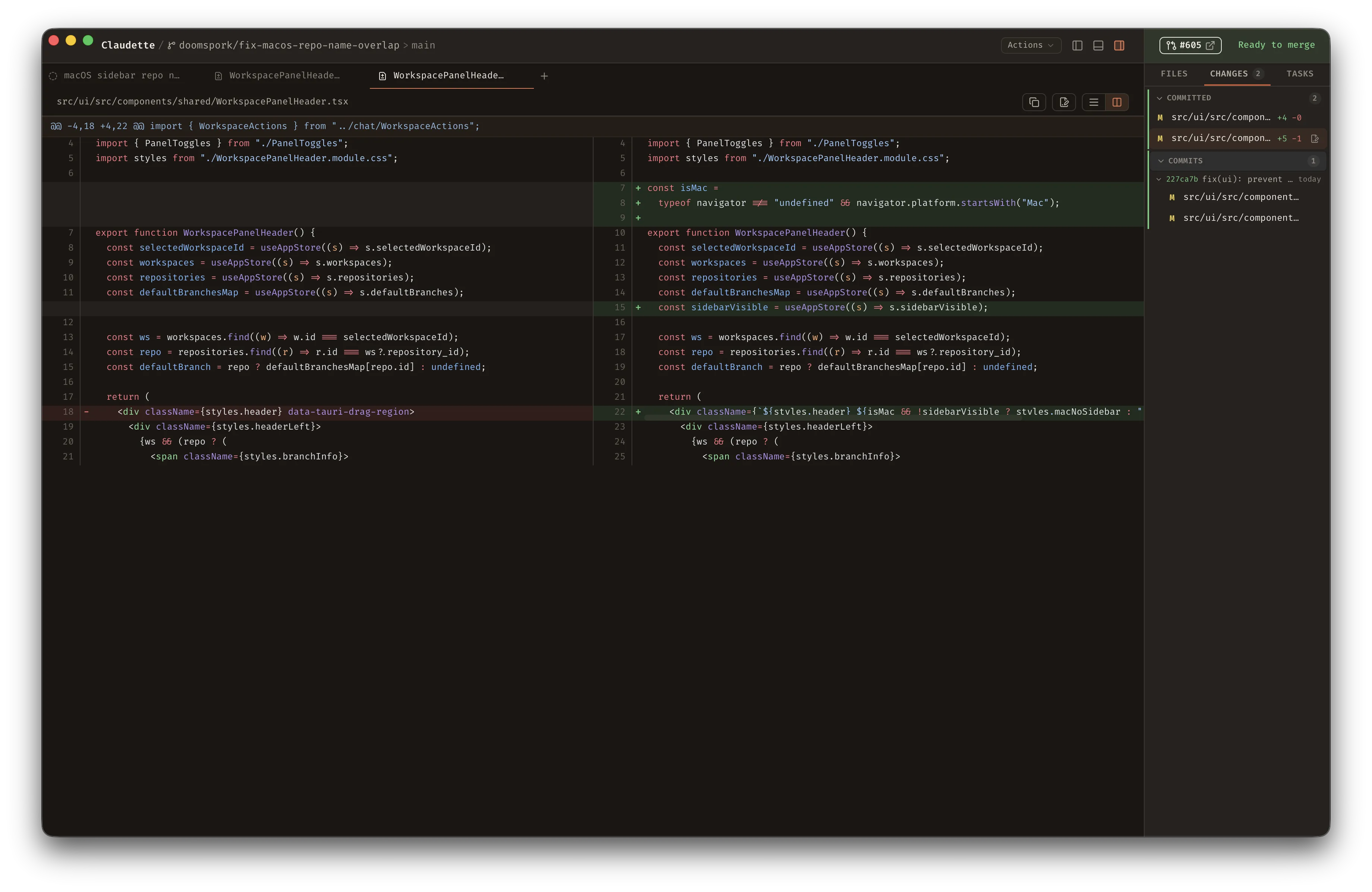
Section titled “Viewing Changes”After an agent completes work (or while it’s still running), the diff panel shows all modified files with syntax highlighting, line numbers, and a choice of two layouts:
Unified View
Section titled “Unified View”Added lines in green, removed lines in red, displayed as a single column — the classic git diff format.
Side-by-Side View
Section titled “Side-by-Side View”The removed version on the left, the added version on the right. Corresponding changed lines are paired on the same row, making it easier to compare before and after at a glance. Toggle between layouts using the toolbar icons in the top-right corner of the diff panel.
Changed Files List
Section titled “Changed Files List”The right sidebar (⌘/Ctrl + D to toggle) displays a list of all files that have been changed in the current workspace. Click any file to jump to its diff. The tab label turns red when the workspace has uncommitted changes, and a badge shows the count of changed files so you can tell at a glance whether the workspace is dirty.
When the agent edits files, the chat timeline also shows a compact change summary: live edit tool calls include the file path plus added/removed line counts, and the completed turn ends with a collapsible per-file summary card. Click the “N files changed” header to expand the file list, then click any file row to see a lightweight inline diff preview. Open the diff panel for a full review.
Change Groups
Section titled “Change Groups”The changed files list organizes files into collapsible sections, one per git layer:
- Committed — files changed on this branch compared to the base branch, with diff stats (lines added/removed) per file. The committed file list is expandable so you can collapse it when you only care about working-tree changes.
- Staged — files added to the git index (
git add) - Unstaged — tracked files with working tree modifications
- Untracked — new files not yet tracked by git
Each section has a colored left border for quick visual scanning. A file can appear in more than one group — for example, a file with both staged and unstaged changes shows up in both sections. Clicking a file opens the diff for that specific layer, not the combined diff.
Stage, Unstage, and Discard
Section titled “Stage, Unstage, and Discard”The Changes panel provides per-file and bulk controls for staging workflow:
- Stage — click the
+button on an unstaged or untracked file togit addit, or use the bulk stage button at the top of the Unstaged/Untracked section to stage everything in that group. - Unstage — click the
-button on a staged file to move it back to the working tree, or use the bulk unstage button. - Discard — click the discard button on an unstaged file to revert it to the index version. A confirmation prompt prevents accidental data loss. Bulk discard is available at the section level.
How It Works
Section titled “How It Works”Workbench uses separate git operations per layer to build the changed-files list and to render the diff for a selected file. In some cases these are the same base command with different flags, and for untracked files the list and diff steps are different commands entirely:
| Layer | Changed-files list | Per-file diff |
|---|---|---|
| Committed | git diff <merge-base>..HEAD --name-status / --numstat | git diff <merge-base>..HEAD -- <path> |
| Staged | git diff --cached --name-status / --numstat | git diff --cached -- <path> |
| Unstaged | git diff --name-status / --numstat | git diff -- <path> |
| Untracked | git ls-files --others --exclude-standard | git diff --no-index -- /dev/null <path> |
The list updates automatically as the agent writes code, so you can watch changes appear in real time during streaming.
Syntax Highlighting
Section titled “Syntax Highlighting”Diffs render with full syntax highlighting based on the file’s language. Added and removed lines are tinted green and red respectively, with the language grammar applied on top — so you can read the code the same way you would in an editor rather than as plain monochrome text.
Markdown Preview
Section titled “Markdown Preview”Changed .md files get a rendered markdown preview alongside the raw diff. The preview supports mermaid diagrams, so you can see flowcharts and sequence diagrams as they’ll appear to readers rather than as code blocks.
Original source: utensils.io/claudette