Pinned Prompts
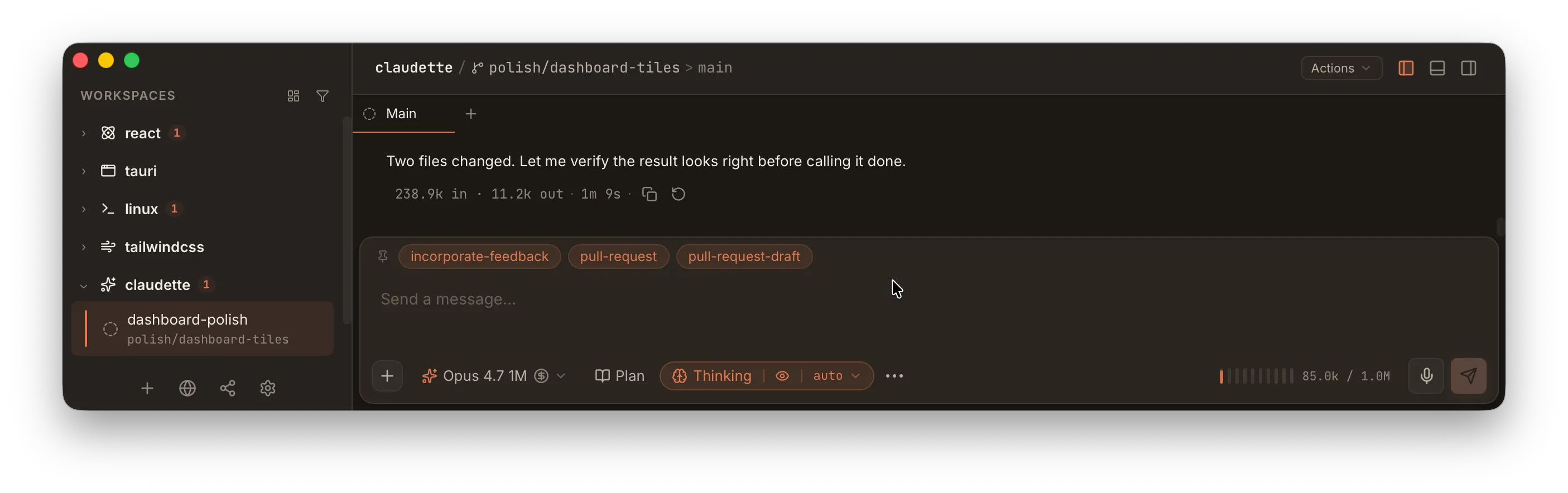
Pinned prompts are named shortcuts that appear as clickable pills above the chat composer. Use them to send recurring instructions, slash commands, or multi-line prompts in a single click — without retyping or scrolling through history.
The Prompt Bar
Section titled “The Prompt Bar”When at least one pinned prompt is configured, a row of pills appears above the chat input. Each pill shows the prompt’s display name. Clicking a pill either sends the prompt immediately or inserts it into the composer, depending on whether Auto-send when clicked is enabled.
Auto-send vs Insert
Section titled “Auto-send vs Insert”Each pinned prompt has an Auto-send when clicked toggle (referred to as Auto-send below for brevity):
| Mode | Behavior |
|---|---|
| Auto-send on | Clicking the pill sends the prompt immediately, as if you had typed it and pressed Enter |
| Auto-send off | Clicking the pill inserts the prompt text into the composer so you can review or edit before sending |
Use auto-send for prompts you always want to run as-is. Leave it off for templates you customize each time.
Toolbar Overrides
Section titled “Toolbar Overrides”Each pinned prompt can also carry an opinion about the four chat-toolbar toggles:
- Plan mode
- Fast mode
- Thinking
- Claude in Chrome
Each override is tri-state: Inherit, On, or Off.
The Plan mode override follows the active runtime: Claude-compatible sessions start with Claude Code’s plan approval flow, while Codex Native sessions start with Codex’s plan collaboration mode.
| Setting | Behavior on click |
|---|---|
| Inherit (default) | The toolbar toggle is left at whatever you’ve selected for the session |
| On | The toolbar toggle is flipped on before the prompt runs |
| Off | The toolbar toggle is flipped off before the prompt runs |
Overrides are applied to the live toolbar — the change is sticky, not per-turn. After clicking the pinned prompt, the toolbar shows the new state and follow-up turns inherit it until you flip the toggle back yourself.
A typical use: an “Incorporate feedback” prompt that must run outside plan mode can pin Plan mode: Off, so clicking the pill always disables plan mode before sending — even if you forgot the toolbar was still on plan.
Overrides apply whether Auto-send is on or off. With auto-send off you’ll see the toolbar update before you edit the inserted prompt.
Using ”/” in Prompt Bodies
Section titled “Using ”/” in Prompt Bodies”When creating or editing a pinned prompt, the prompt body field supports the same / slash command picker as the main chat composer. Type / to open the picker and select a command to insert it.
This lets you build prompts that combine slash commands with custom context — for example, a “Review changes” prompt that runs /review followed by project-specific instructions.
Global Prompts
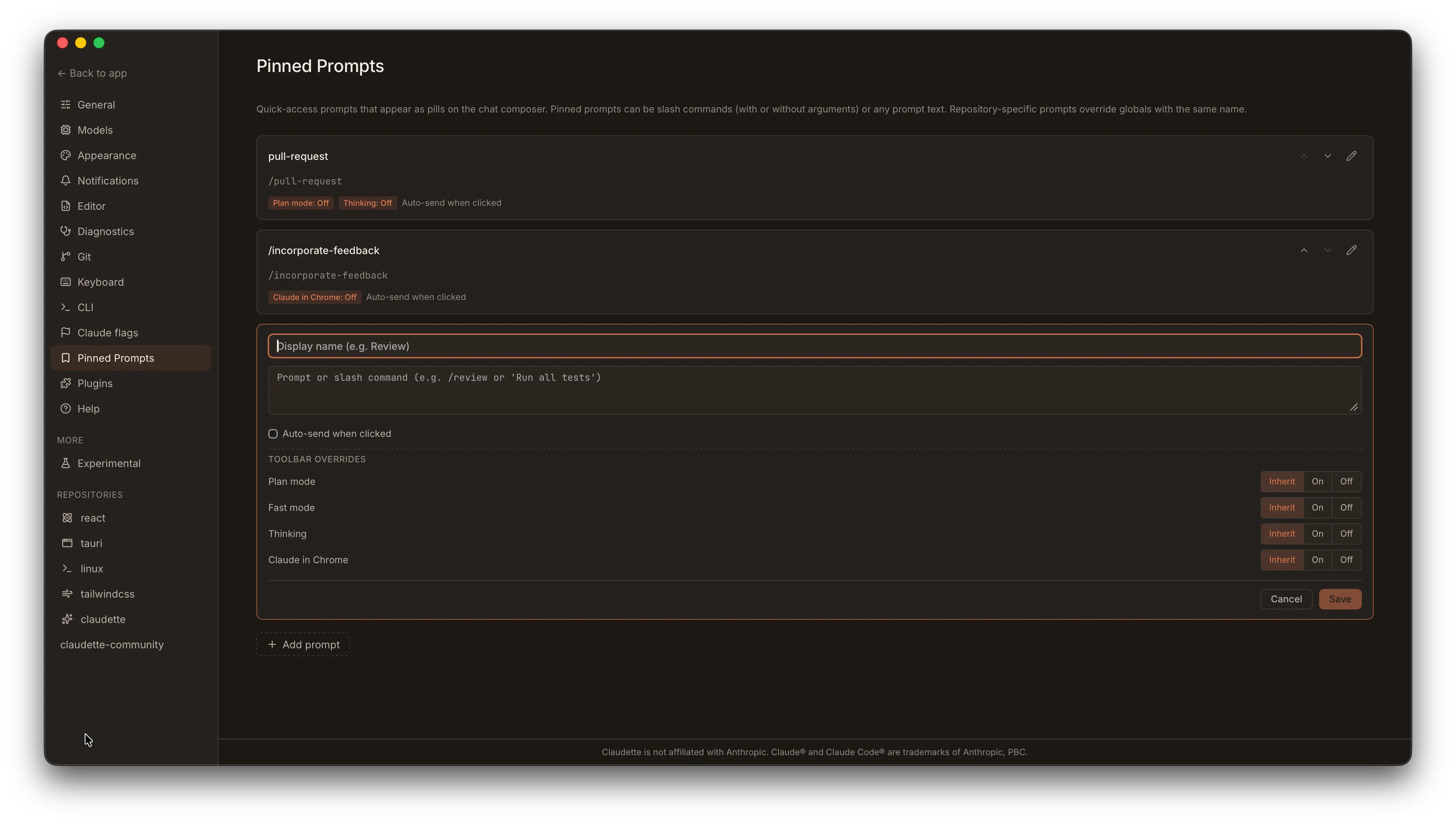
Section titled “Global Prompts”Global pinned prompts appear in every repository. Manage them at Settings → Pinned Prompts.
To create a global prompt:
- Open Settings → Pinned Prompts
- Click Add prompt
- Enter a Display name (shown on the pill) and the Prompt body
- Toggle Auto-send on or off
- Under Toolbar overrides, set each toggle — Plan mode, Fast mode, Thinking, Claude in Chrome — to
Inherit,On, orOff(see Toolbar Overrides above; leave them onInheritif the prompt doesn’t care) - Click Save
Use the ↑ and ↓ buttons to reorder prompts within the list. Order is preserved in the pill bar.
In the prompt list, a prompt that forces any toggle shows small chips (e.g. Plan mode: Off) next to its name, alongside the Auto-send indicator.
Repo-Specific Prompts
Section titled “Repo-Specific Prompts”Each repository can have its own pinned prompts that appear only when working in that repo. Manage them at Settings → [Repository Name] → Pinned Prompts.
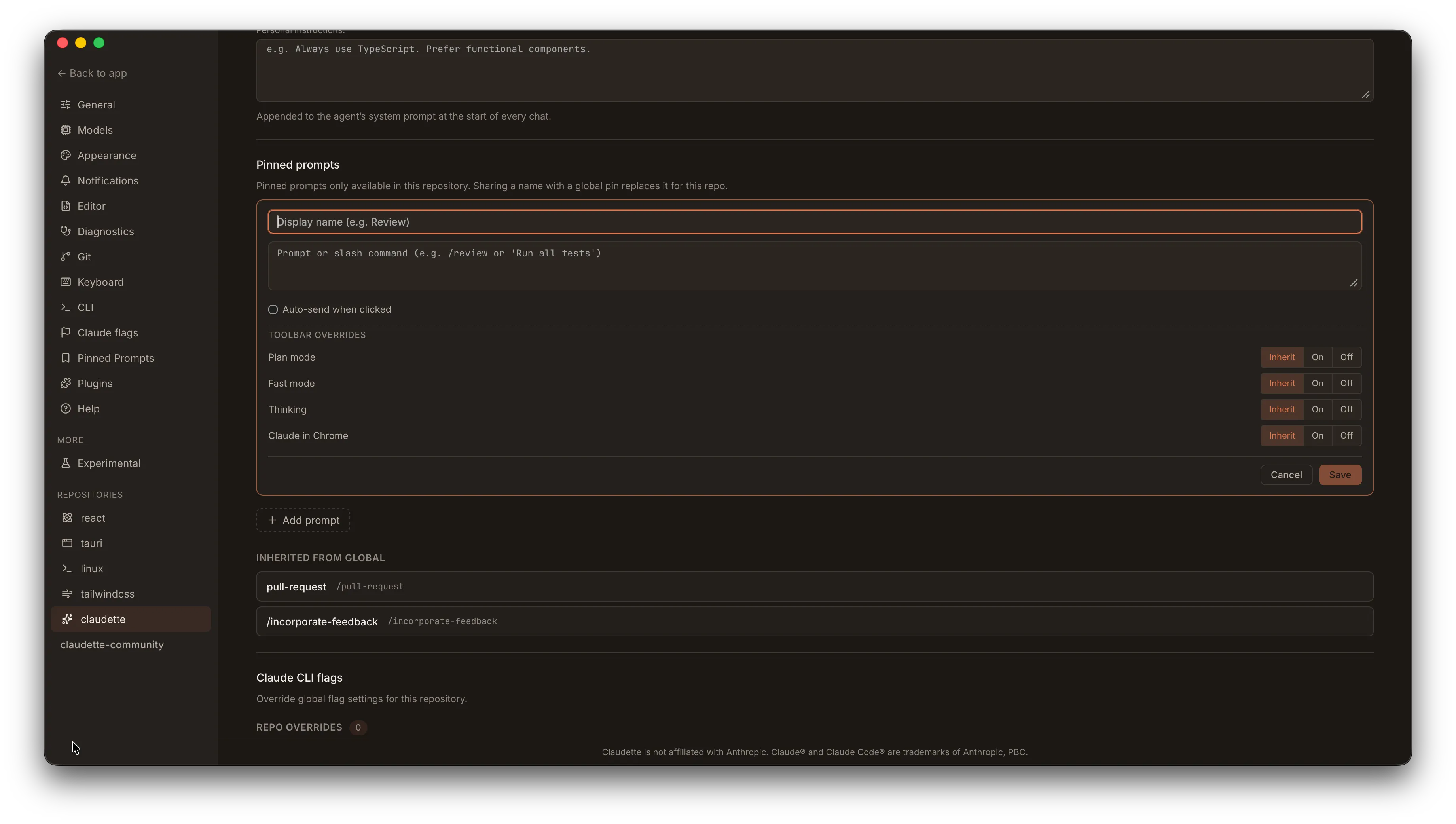
Repo prompts appear before global prompts in the pill bar. See Per-Repo Settings for other repository-level configuration.
Inheritance and Overrides
Section titled “Inheritance and Overrides”Repositories inherit all global pinned prompts automatically. If a repo defines a prompt with the same display name as a global prompt, the repo’s version takes precedence and the global one is hidden.
In repo settings, inherited global prompts are listed below the repo-specific prompts. Any global prompt that is being overridden by a repo prompt of the same display name shows an Overridden badge.
This lets you define a common baseline globally while tailoring specific prompts per project — for example, a global “Run tests” prompt that a repo overrides with its specific test command.
Export and Import
Section titled “Export and Import”Share your pinned prompts across machines or with team members using JSON bundles.
Exporting
Section titled “Exporting”Open Settings → Pinned Prompts (for global prompts) or Settings → [Repository] → Pinned Prompts (for repo-scoped prompts). Click the Export button to open a scope picker:
- Global only — export only global prompts
- Repo-scoped only — export only the current repo’s prompts
- Both — export global and repo-scoped prompts in a single bundle
A native save dialog lets you choose the destination. The exported v1 JSON bundle contains the prompt text, display name, auto-send setting, toolbar overrides, and scope metadata. Instance-specific data (IDs, ordering, timestamps) is not included — imported prompts receive fresh values. The bundle format is forward-compatible: unknown fields are preserved on import so bundles created by newer versions don’t lose data.
Importing
Section titled “Importing”Click the Import button and select a .json bundle file. A review modal shows all prompts in the bundle:
- Select which prompts to import using per-prompt checkboxes. All are selected by default.
- Choose the target scope (Global or a specific repository) regardless of where the prompts were originally exported from.
- Resolve name conflicts — if a prompt in the bundle has the same name as an existing prompt in the target scope, a conflict badge appears. Toggle Replace existing to overwrite the existing prompt, or leave it unchecked to skip that prompt. Stale-conflict detection catches races where a prompt was modified between opening the review modal and confirming the import.
Import is transactional — either all selected prompts are created/replaced or none are. Imported prompts are appended to the end of the target scope’s list.
Validation
Section titled “Validation”The import process rejects:
- Files larger than 1 MiB
- Bundles containing more than 500 prompts
- Prompts with whitespace-only names or bodies
Original source: utensils.io/claudette