
File Editor
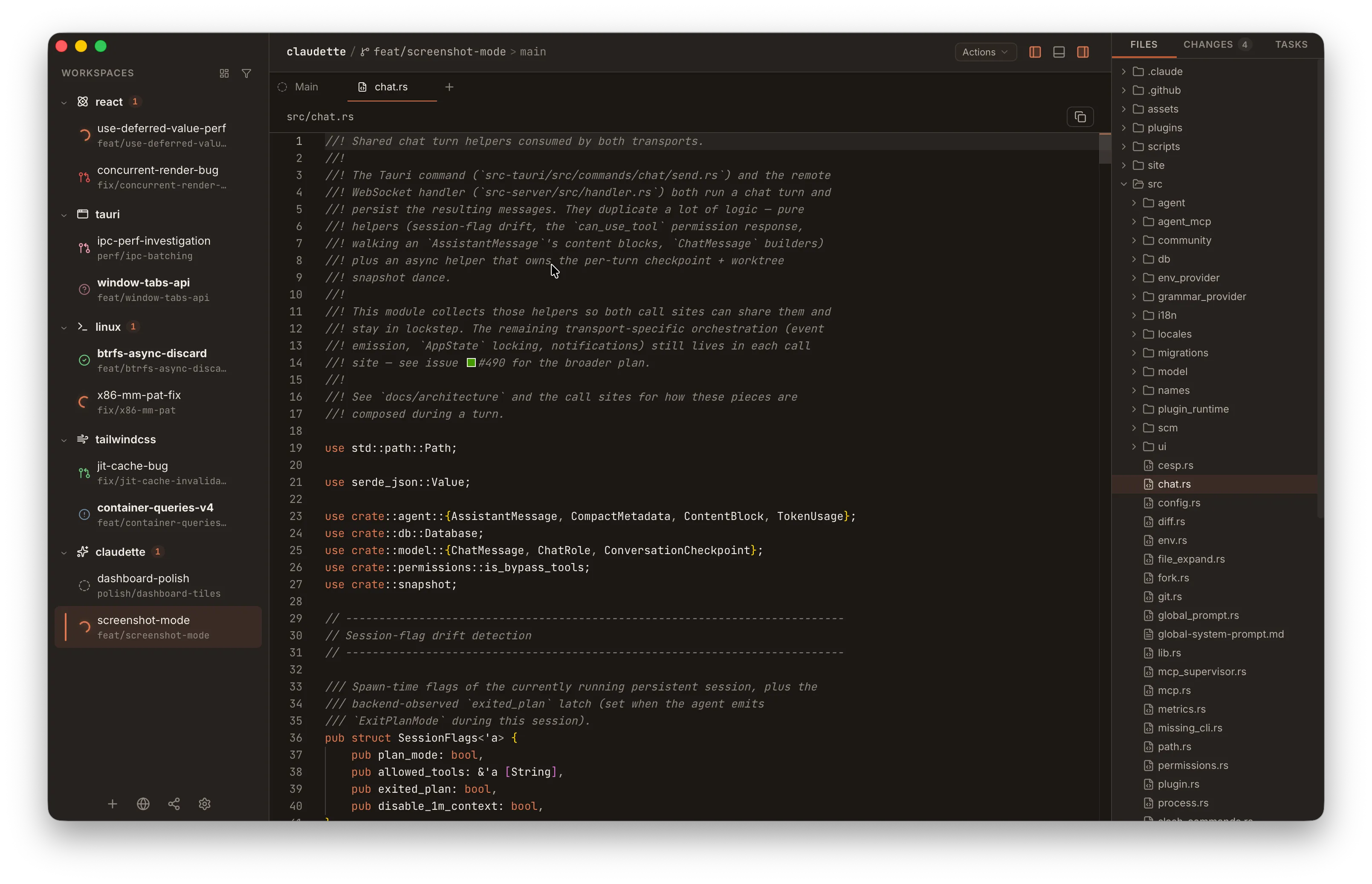
Workbench ships a full Monaco editor — the same code editor that powers VS Code — for opening and editing files in your workspace. It runs entirely offline alongside the agent chat, the diff viewer, and the integrated terminal.
Opening a File
Section titled “Opening a File”There are two main ways to open a file in the editor:
- From the Changes panel — click the Open in editor icon button (the file icon at the right edge of any changed-file row). Clicking the file path itself opens the diff for that file in a separate tab; the icon button is what lands you in Monaco.
- From the Files tab — switch to the Files sidebar to browse the workspace’s file tree, and click any file to open it in the editor.
Files open as tabs next to your chat and diff tabs, so you can hop between agent output, a diff, and the editor without losing context. Each file gets its own tab, and switching files inside that tab gives you a fresh undo history per file.
The tree follows the filesystem
Section titled “The tree follows the filesystem”The Files tab watches the worktree root and every directory you have expanded, using the OS filesystem watcher (FSEvents on macOS, inotify on Linux, ReadDirectoryChangesW on Windows). A file created, removed, renamed, or written by an agent, another editor, or a git command shows up in the tree within a fraction of a second, without switching tabs or workspaces. Only the directories on screen are watched (never the whole tree recursively), so watch usage stays small on large repositories.
If the watcher cannot start on your machine (for example when the Linux inotify limit is exhausted), the tree still refreshes on its polling schedule: every 5 seconds while an agent is running and every 10 seconds while idle, as long as the window is visible. Remote workspaces use polling only.
Drag to chat as @mention
Section titled “Drag to chat as @mention”Drag a file or folder from the Files tab into the chat input to insert it as an @path mention — the agent receives the file contents as context for the next turn. This also works from your OS file manager: drag a file from Finder, Nautilus, or Explorer directly into the chat composer.
File Tree
Section titled “File Tree”Material icons
Section titled “Material icons”The file tree uses icons from the material-icon-theme to give each file type a recognizable glyph — TypeScript, Rust, JSON, Markdown, images, and hundreds of others all have their own icon.
Reveal in tree
Section titled “Reveal in tree”When you switch between editor tabs, the file tree automatically highlights and scrolls to the active file so you always know where you are in the directory structure. You can also trigger this manually from the editor menubar via File > Reveal in Files Panel.
Context menu
Section titled “Context menu”Right-click anywhere in the file tree for a context menu with common file operations:
- New File / New Folder — create entries at the root level or inside a specific directory.
- Inline Rename — rename a file or folder in place without a dialog.
- Trash — move items to the system trash. An undo toast appears briefly so you can recover an accidental delete.
Both root-level right-click (empty space below the tree) and directory-level right-click (on a folder row) show the appropriate subset of actions.
Drag and drop
Section titled “Drag and drop”You can drag files and folders into the file tree to organize your workspace:
- From your OS file manager — drag files or folders from Finder, Explorer, or Nautilus onto the file tree to copy them into the workspace. Drop onto a directory row to copy into that directory, onto a file row to copy into its parent directory, or onto the empty space below the tree to copy to the workspace root.
- Within the tree — drag a file or folder from one directory to another to move it. Open editor tabs update their paths automatically when you move files underneath them.
- Conflict resolution — if a file with the same name already exists at the destination, Workbench auto-renames the incoming file with a numeric suffix (
file (1).txt,file (2).txt, etc.) so nothing is overwritten. - Undo — internal moves and external copies both support undo. Undoing a move puts the file back; undoing a copy trashes the copied item.
Drag and drop is disabled for remote workspaces.
Agent-Managed Files
Section titled “Agent-Managed Files”Agents persist plans and memory notes outside your worktree — under ~/.claude/ (Claude Code) and ~/.codex/memories/ (Codex). When one of these paths appears in chat — in an Editing tool-call row, an agent message, or a plan card — clicking it opens the file directly in Monaco instead of failing the worktree path check.
Recognized locations:
| File | Location | Badge |
|---|---|---|
| Plans | ~/.claude/plans/**/*.md | Plan |
| Project memory | ~/.claude/projects/<project>/memory/**/*.md | Memory (or Memory index for MEMORY.md) |
| Other project notes | ~/.claude/projects/<project>/**/*.md | Project file |
| Codex memory | ~/.codex/memories/**/*.md | Memory (or Memory index) |
These tabs are read-only — they’re for inspecting what the agent wrote, not editing it — and the pane toolbar shows a badge identifying the file kind alongside its full path. Everything else (only those allow-listed directories, never arbitrary absolute paths) still goes through the standard worktree security boundary.
Read vs Edit Mode
Section titled “Read vs Edit Mode”Files open in read-only mode by default. Toggling into edit mode does not remount the editor — your cursor position, scroll offset, and undo stack are preserved as you switch in and out of edit mode.
Save with ⌘S on macOS or Ctrl+S on Linux/Windows. The shortcut is scoped to the editor — it only fires when the editor has focus, so it won’t collide with other panels.
Editor Menubar
Section titled “Editor Menubar”Above the editor, Workbench renders a compact File / Edit / View / Go menubar that surfaces the editor’s most useful commands without needing to remember Monaco’s keyboard shortcuts. The same items work whether the file is open in read-only or edit mode; items that don’t apply (Save on a clean file, Format Document on a binary) are disabled rather than hidden so the menus stay predictable.
| Menu | Items |
|---|---|
| File | Save, Revert to Saved, Reveal in Files Panel, Close File |
| Edit | Undo, Redo, Find, Find and Replace, Format Document, Copy File Contents, Copy Path, Copy Relative Path |
| View | Turn Word Wrap on/off, Show/Hide Minimap, Show/Hide Line Numbers, Zoom In/Out/Reset |
| Go | Go to File (⌘/Ctrl + P), Go to Line, Go to Symbol |
Reveal in Files opens the right-sidebar Files panel, expands the path’s parent directories, and selects the file. Copy Path copies the absolute on-disk path (joined with the workspace’s worktree root), and Copy Relative Path copies the workspace-relative form.
The View toggles persist across windows and restarts — Word Wrap, Minimap, Line Numbers, and Zoom are stored as app settings (editor_word_wrap, editor_minimap_enabled, editor_line_numbers, editor_font_zoom) and hydrate on startup. Zoom is clamped to a 0.7×–2.0× range; Reset Zoom returns the editor to 100%.
Theme Sync
Section titled “Theme Sync”Monaco’s theme follows Workbench’s app theme automatically. Pick a theme in Settings > Appearance and the editor restyles immediately, with no reload required. The same is true for dynamic colour changes — the editor observes the active theme and updates in real time.
See Theming for the full list of bundled themes.
Syntax Highlighting & Language Services
Section titled “Syntax Highlighting & Language Services”Language detection is automatic — Monaco picks the language from the file extension, so opening app.tsx gives you TypeScript, styles.css gives you CSS, and so on.
Dedicated language services run for:
- TypeScript / JavaScript — full type-aware highlighting and diagnostics
- JSON — schema-aware validation and formatting
- CSS / SCSS / LESS — property and value validation
- HTML / Handlebars / Razor — tag and attribute completion
Each language service runs in its own web worker, so typing latency stays snappy on larger files. Everything is bundled with the app — no CDN fetches, no network required.
Git Gutter Markers
Section titled “Git Gutter Markers”The Monaco editor shows git change indicators in the gutter — green bars for added lines, blue for modified, and red arrows for deleted regions. These markers update live as you edit and give you a quick visual diff against the base reference.
The base reference defaults to HEAD but is configurable in Settings > Editor > Git gutter base — you can compare against the working tree, the index, or a specific branch.
In-App Webview
Section titled “In-App Webview”HTTP and HTTPS links that appear in chat messages open as in-app webview tabs rather than immediately launching your external browser. Each link opens in an iframe-based tab alongside your editor, diff, and chat tabs, so you can reference documentation or preview a URL without leaving Workbench.
Webview tabs persist across panel switches — navigate away and back and the page is still loaded. Right-click a webview tab for context-menu actions like copying the URL or opening it externally.
To force a link into your system browser instead, hold the modifier key (Cmd on macOS, Ctrl on Linux/Windows) while clicking, or middle-click the link.
Markdown Preview
Section titled “Markdown Preview”Toggle a rendered Markdown preview for the current file with Cmd+Shift+V (macOS) or Ctrl+Shift+V (Linux/Windows). The preview opens alongside the editor and updates as you type — useful for reviewing .md and .mdx files without switching to a browser.
PDF Viewer
Section titled “PDF Viewer”Clicking a .pdf file in the Files panel renders all pages inline using pdfjs-dist rather than showing “preview not available”. PDFs open read-only in their own tab like any other file, scroll vertically through pages, and respect the current theme’s background colour.
Not the Diff Viewer
Section titled “Not the Diff Viewer”The Monaco editor is for opening and editing files. The diff viewer is a separate component that uses Shiki for syntax highlighting and is optimised for reviewing hunks of changed code rather than free-form editing. Both can be open at the same time as separate tabs.
Defaults
Section titled “Defaults”The editor ships with these defaults:
| Setting | Value | Toggle |
|---|---|---|
| Font | Default mono stack (matches the rest of the app) | — |
| Font size | 13px (Zoom 1.0×) | View → Zoom In / Zoom Out / Reset Zoom |
| Line numbers | On | View → Show/Hide Line Numbers |
| Word wrap | On | View → Turn Word Wrap On/Off |
| Minimap | Off | View → Show/Hide Minimap (also in Settings → Editor) |
| Sticky scroll | Off | — |
| Whitespace rendering | On selection only | — |
Original source: utensils.io/claudette